
The invitation email sent to the partner includes a unique link to the onboarding portal. Although the email is addressed to the contact specified in Step 1, it can be forwarded internally if multiple individuals are involved in completing the onboarding.
Sections
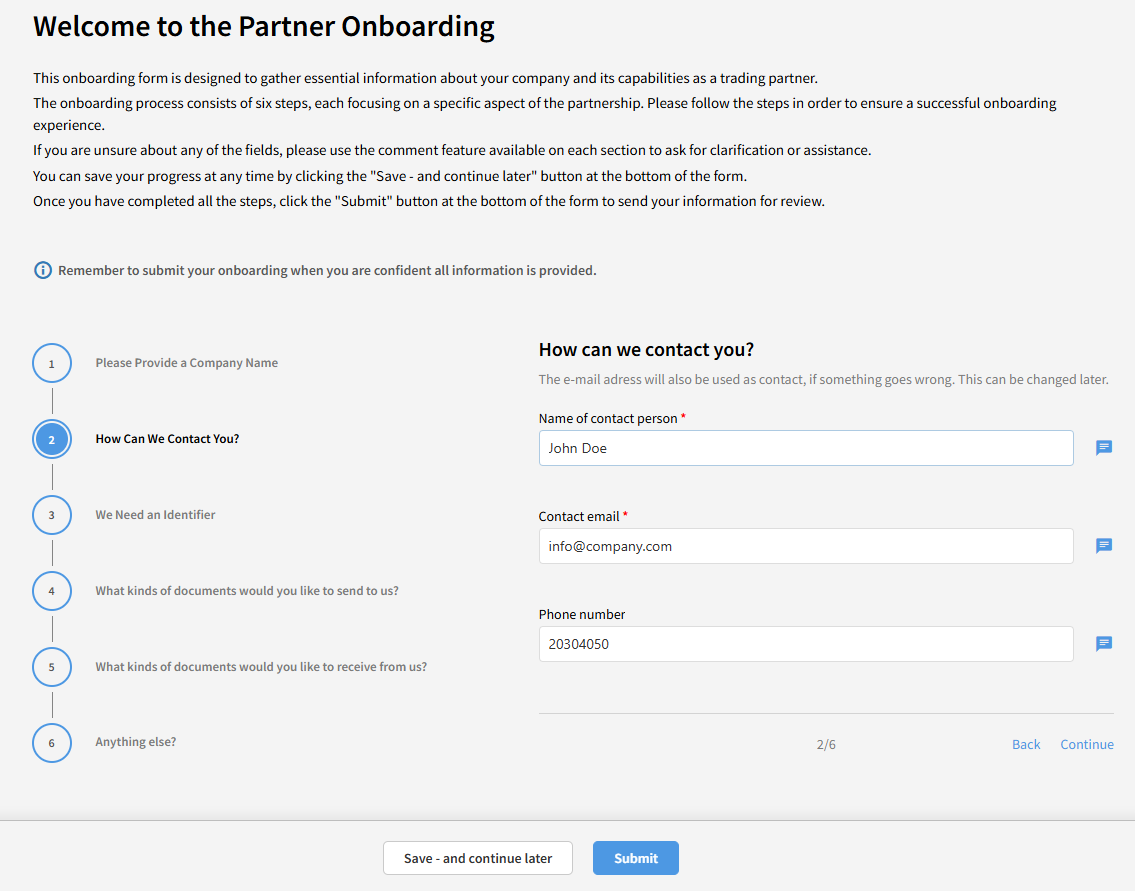
The onboarding form is divided into numbered sections, displayed in a step-by-step navigation panel on the left. Although the sections are listed sequentially, the partner may move freely between them and complete them in any order.
Documents
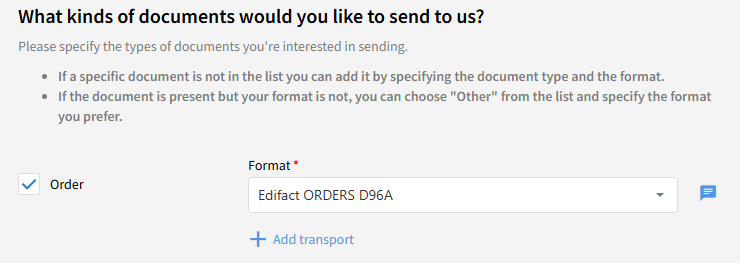
The partner can select the documents to be exchange. After selecting a document the partner can select the document format from a list of available formats.
Transport
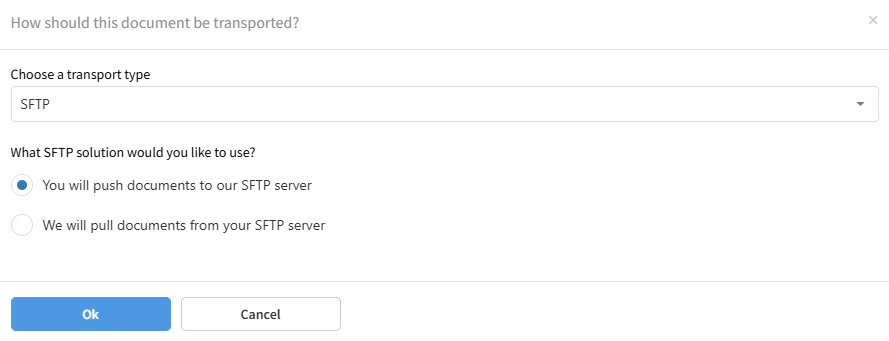
For each document a specific transport type can be selected. The number of available transport types depends on what has been configured.
Exampe 1
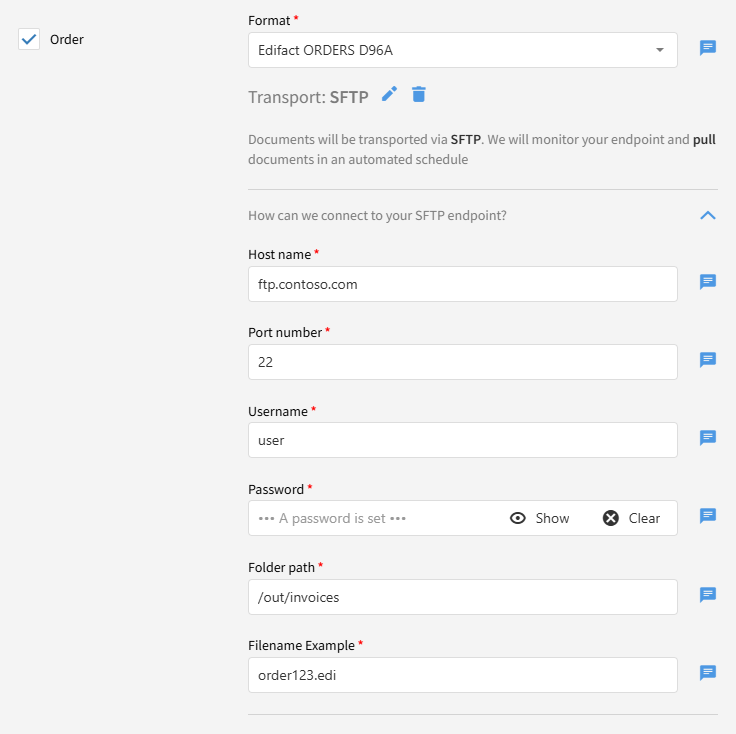
In this example the partner would like to send orders via their own SFTP. In this case Link will use the connection details provided by the partner to connect to the SFTP server and download orders.
Example 2
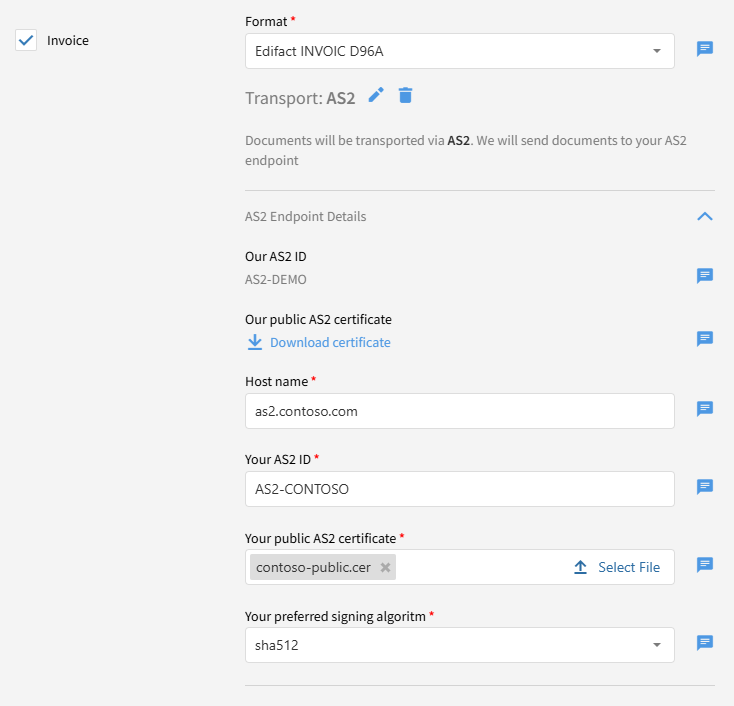
In this case the partner would like to receive invoices via AS2. Your AS2 ID and AS2 public certificate are provided to the partner. Likewise the partner is asked to provide their AS2 ID and certificate in addition to the endpoint address to where the document should be sent.
Example 3
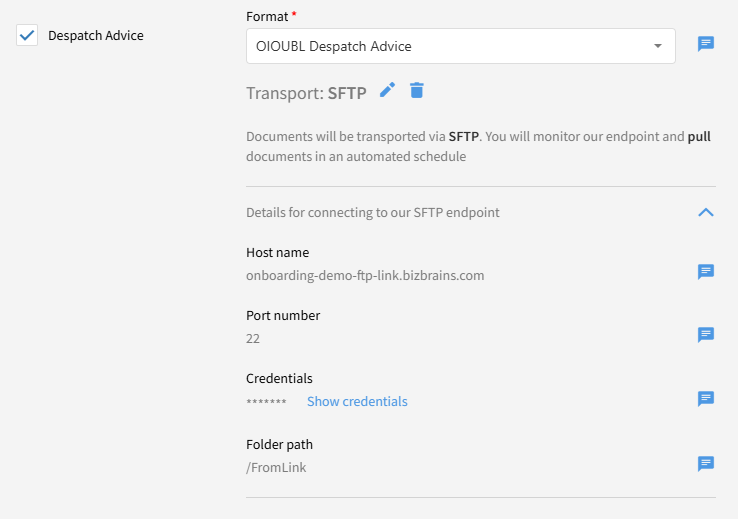
In this example the partner would like to receive despatch advices. In this case all necessary connection details are provided for the partner to log onto your SFTP server and download the document.
Custom Fields
Certain sections—such as Identifiers and Document Types—allow the partner to enter custom information.
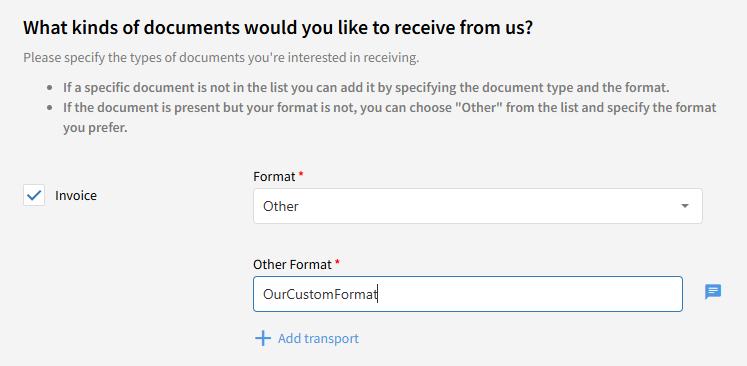
For example, if the partner wishes to send invoices in a proprietary format, they can select “Other” and enter the format name manually. These situations cannot always be handled automatically but serve as important input for further dialogue.
Communication
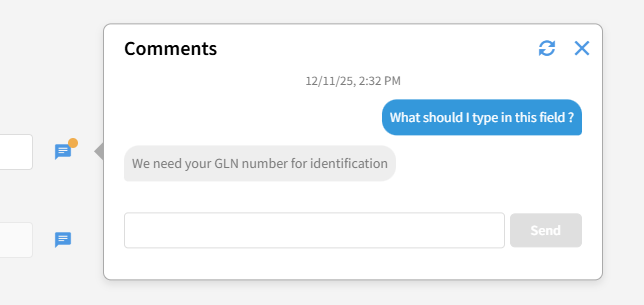
Effective communication is essential for a smooth onboarding experience. The portal includes a built-in Comments feature that allows both you and the partner to exchange messages directly within the onboarding context. Centralizing communication in the portal ensures that all stakeholders can easily track questions, clarifications, and decisions.
Saving and Submitting
Partners can save their progress at any time and return later to complete the form. This also supports scenarios where another colleague needs to take over.

Once all information has been provided, the partner submits the form.
After submission, all fields are locked to give you time to review the data. The partner can still access the portal to view their submitted information. If updates are required, they can request specific fields to be reopened using the Comments feature.