
When the partner submits their information, you will receive a notification email. You can then review and accept each section individually.
If clarification is needed, use the Comments feature to communicate directly with the partner.
If updates or additional information are required, you may Reopen specific items. When reopening an item, you may optionally notify the partner and explain what needs to be changed.
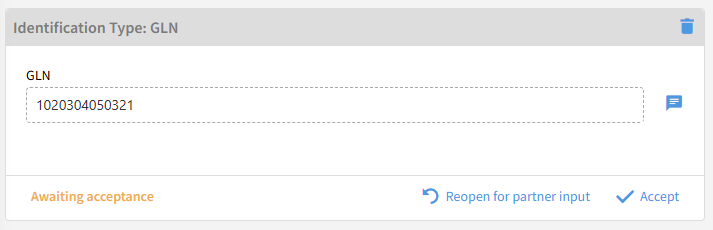
If all information is satisfactory, you can begin accepting the individual items. Depending on what is accepted, Link will automatically create the corresponding records:
-
Contact information → new partner contact
-
Identifiers → new partner identification
-
Document types → new distribution and transport location
Example of accepting a document type
In the example below the partner has specified that they like to send orders in the Edifact D96A format. SFTP will be used for transport and the partner has provided all necessary details for connecting to their server.
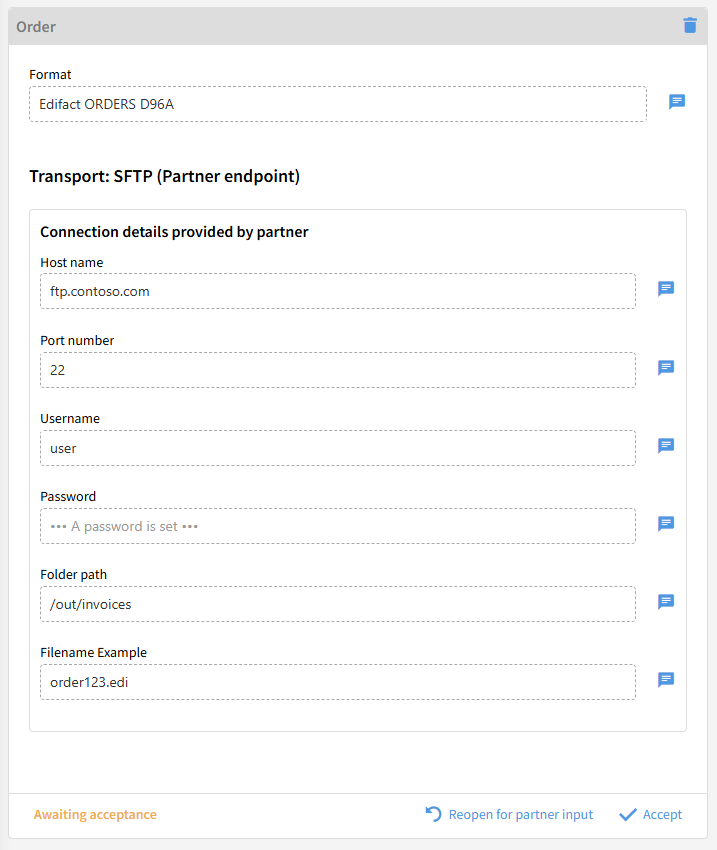
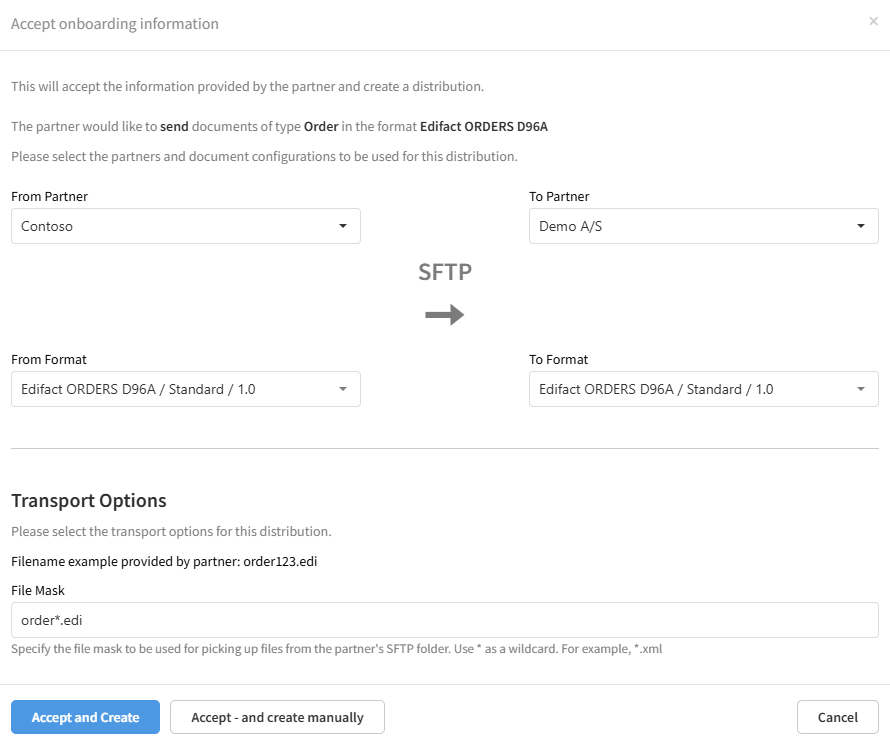
When clicking Accept a dialog shows that a distribution will be created between Contoso and Demo A/S for exchanging Edifact orders.
It also shows that the transport chosen by the partner is SFTP, so there will also be created a new incoming location for connecting and downloading documents from the partners SFTP server.
Completing the Onboarding
After all items have been accepted, click Complete the onboarding.
This marks the onboarding process as finished and helps you maintain an overview of ongoing onboarding activities. Once completed, the Partner view in Link will no longer default to the Onboarding Details tab.

Reopening the Onboarding Process
In some cases, it may be necessary to reopen a completed onboarding—for example, if the partner later needs to exchange new types of documents. Reopening the onboarding allows the partner to add new information as required.
To reopen a completed onboarding, simply click Reopen the onboarding.
