
We recommend using Visual Studio 2026, and keeping it updated to the latest version. The AI tools, including Copilot and MCP support, are improved continuously. New releases often include fixes and better tool support, and they can resolve problems such as MCP servers failing to connect correctly. Open the Visual Studio Installer and select Update to get the latest version.
The latest version of Bizbrains Visual Studio project templates include AI support to help you develop and test Link assembly artifacts.
They connect GitHub Copilot to Bizbrains' centralized Link SDK reference and product documentation through an MCP server. MCP (Model Context Protocol) allows the assistant to look up documentation and API signatures while working on your project.
Supported templates
AI support is currently included in the Link Step and Link Step Unit Test project templates only. It is not included in the Link XSLT template.
What can the AI help with?
You can use the assistant to:
-
Find and explain relevant Link SDK APIs.
-
Implement or modify artifacts using documented SDK contracts and best practices.
-
Understand artifact configuration, dependency injection, message handling and error handling.
-
Write unit tests using the Link test setup.
-
Find existing artifacts that may solve your problem without custom development.
Before implementing new functionality, the supplied instructions tell the assistant to check both the system-artifact and Link Community Component catalogs. If a suitable component exists, it should suggest using that component instead of developing an equivalent artifact.
See Link Community Components for more information about reusing and contributing components.
Get started with a new project
1. Create a project using a supported template
Install the Bizbrains templates as described in How to develop Link 3 artifacts, then create your project in Visual Studio using:
-
Link Step for the artifact implementation.
-
Link Step Unit Test for its unit tests.
Use a version of Visual Studio with GitHub Copilot Chat and MCP support available.
The templates add MCP configuration and AI guidance to the shared folder above the project directory, normally the solution root:
|
Location |
Purpose |
|---|---|
|
|
Configures access to the central documentation server. |
|
|
Contains instructions for artifact development or testing, depending on the template. |
|
|
Contains the artifact-development workflow supplied by the Link Step template. |
For the complete development and testing setup, use both templates in the same solution.
2. Enable the Link SDK tools
The MCP tools must be enabled manually for each newly created project. The templates cannot enable them automatically in Visual Studio.
-
Open GitHub Copilot Chat.
-
Select Agent mode so the assistant can use tools.
-
Open the tools/settings menu in the chat window.
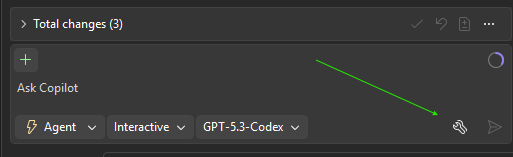
-
Find the tools belonging to the link-sdk MCP server.
-
Enable all link-sdk tools.
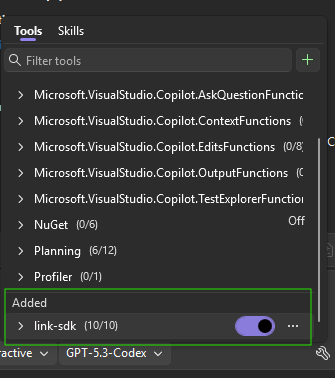
The position and appearance of these controls may vary between Visual Studio versions.
3. Start asking for help
Describe the behavior you want, including relevant configuration, input, expected output and error cases. You do not need to name individual MCP tools.
Understand an artifact
Explain how this artifact works. Use the Link SDK documentation to explain the base class and the methods I need to implement.
Check whether custom development is needed
I need an artifact that sends messages to an HTTP endpoint. First check whether an existing system artifact or Link Community Component already covers my requirements.
Implement functionality
Implement the following behavior in this artifact: [describe the behavior]. Look up the relevant Link SDK guidance and API signatures before writing code.
Add tests
Add unit tests for this artifact in the existing test project. Cover successful processing, invalid input and the relevant error cases.
The development workflow also tells the assistant to look for an existing test project. If none exists, it should propose creating one using Link Step Unit Test and ask for your confirmation before adding it.
Add AI support to an existing project
Projects created before AI support was added to the templates can be configured manually.
1. Add the MCP configuration
In the root of your solution or workspace, normally the folder containing the solution file, create a folder named .vscode.
Inside it, create a file named mcp.json with the following content:
{
  "servers": {
    "link-sdk": {
      "type": "http",
      "url": "https://mcp.bizbrains.com/api/mcphandler/sdk-documentation"
    }
  }
}
If you already have this configuration file, add the link-sdk entry to its existing servers object. Preserve any other server configurations.
2. Enable the tools in Visual Studio
Open GitHub Copilot Chat and enable all link-sdk tools as described above.
If the server does not appear in the tools list, restart Visual Studio and check again.
3. Add the template instructions and skill
MCP access and AI instructions are separate
Adding the MCP configuration gives the assistant access to documentation. It does not add the development workflow or test instructions included in the templates.
To get the same guidance as a newly created solution:
-
Create a temporary solution using the current Link Step template.
-
Add a project using the Link Step Unit Test template to that solution.
-
Copy the generated
.githubfolder from the temporary solution root to your existing solution root, alongside.vscode.
This provides the artifact-development instructions and skill, together with the test-specific instructions.
If your existing solution already contains a .github folder, merge the relevant files rather than replacing the folder. Preserve existing instructions and other repository configuration.
Verify the setup
Try the following prompt:
Use the link-sdk MCP tools to find the documentation relevant to this artifact's base class. Summarize its purpose and include the documentation references you used.
Check that the assistant actually uses the link-sdk tools rather than answering only from general knowledge.
If the tools are unavailable or the necessary documentation cannot be retrieved, the supplied instructions tell the assistant to report the blocker rather than guess SDK APIs.
Troubleshooting
|
Problem |
What to check |
|---|---|
|
The link-sdk server does not appear. |
Check that |
|
The assistant does not use the tools. |
Check that Copilot Chat is in Agent mode and all link-sdk tools are enabled. Explicitly ask it to use the Link SDK documentation. |
|
Documentation lookup works, but the assistant does not follow the template workflow. |
Check that the generated |
|
The assistant reports missing documentation or a version mismatch. |
Review the reported issue before continuing with the affected implementation. Do not rely on guessed API signatures or assumed compatibility. |
Review and test generated code
AI assistance does not replace code review or testing.
Review the proposed changes, check compatibility with your project's Link SDK version, and build and run the relevant tests before deploying the artifact.
Do not include credentials, personal data or sensitive message payloads in your prompts.